Introduction
Many small business owners start using QuickBooks without a plan—picking the wrong version based on price alone, clicking through setup screens without understanding the questions, or simply running their business from their checking account instead of their books. The result? Messy financials that create confusion, missed deductions, and expensive cleanup bills at tax time.
According to IRS data, the average small business misses out on $3,000 to $10,000 in legitimate tax deductions annually due to poor bookkeeping. Meanwhile, 59% of small business owners discover accounting errors only after reviewing their bank statements, by which point problems have already compounded.
If any of that sounds familiar, this guide is for you. Here's what we cover:
- How to choose the right QuickBooks plan for your business
- Setting up QuickBooks correctly from the start
- Using its core features effectively day-to-day
- Avoiding the most common mistakes that derail small business owners
Key Takeaways
- QuickBooks Online is the practical default for most small businesses—cloud-based, scalable, and available in plans built around your team size and workflow needs
- Proper setup is foundational—skipping steps in your chart of accounts or bank connections creates months of downstream problems
- QuickBooks delivers its real value beyond invoicing—bank reconciliation and automated reporting give you actual visibility into cash flow
- Miscategorized transactions, skipped reconciliation, and wrong account types are the most common setup mistakes—all fixable with the right approach
- Getting professional QuickBooks support from day one prevents the costly cleanup that eats up your tax season
Choosing the Right QuickBooks Plan for Your Small Business
QuickBooks offers several Online plan tiers and a Desktop Enterprise option, but picking the wrong one creates either unnecessary cost or missing functionality. Intuit stopped selling new U.S. subscriptions for QuickBooks Desktop Pro Plus, Premier Plus, and Mac Plus after September 30, 2024, making QuickBooks Online the practical default for most small businesses.
QuickBooks Online Plan Tiers
Pricing retrieved April 2024. Intuit offers a 30-day free trial OR 50% off the first three months—these promotions cannot be stacked.
Solopreneur ($20/month, $10 promotional):
- Best for: Solo freelancers with minimal transaction volume
- Users: 1 billable user
- Core features: Mileage tracking, invoicing, basic income and expense tracking
- Limitations: No bill management, no accountant access
Simple Start ($38/month, $19 promotional):
- Best for: Solo business owners who need accountant collaboration
- Users: 1 billable user + 2 accountant seats
- Core features: Income and expense tracking, invoicing, receipt capture, sales tax
- Limitations: No bill pay, no time tracking, no multiple users
Essentials ($75/month, $37.50 promotional):
- Best for: Small teams needing bill management and time tracking
- Users: 3 billable users + 2 accountant seats
- Core features: Bill management, time tracking, 1099 contractor management (includes all Simple Start features)
- Limitations: No inventory tracking, no project profitability, limited class/location tracking
Plus ($115/month, $57.50 promotional):
- Best for: Growing businesses with inventory or project tracking needs
- Users: 5 billable users + 2 accountant seats
- Core features: Inventory tracking, project profitability, up to 40 classes and locations (includes all Essentials features)
- Key difference: First tier with full inventory management
Advanced ($275/month, $137.50 promotional):
- Best for: Larger teams requiring advanced automation and custom workflows
- Users: 25 billable users + 3 accountant seats
- Core features: Custom workflows, advanced reporting, dedicated account team, batch invoicing (includes all Plus features)
- Note: The $160/month jump from Plus is steep—only upgrade once you've maxed out Plus
Plan Decision Triggers
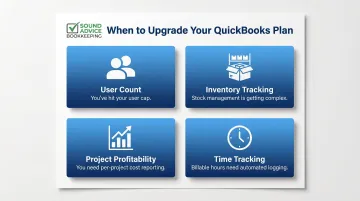
Four variables push businesses from one tier to the next:
- User count: You've hit the cap for your current tier (1 user on Simple Start, 3 on Essentials, 5 on Plus)
- Inventory tracking: Your business tracks stock levels, cost of goods sold, or product profitability
- Project profitability: You need profit/loss visibility by project, job, or client
- Time tracking: You bill clients by the hour or need time data feeding into payroll
QuickBooks Payroll Add-On
Once you've settled on a plan, payroll is the next decision. QuickBooks Payroll is a separate subscription that pairs with Online plans, priced as a base monthly fee plus per-employee charges:
| Tier | Base Fee | Per Employee | Key Features |
|---|---|---|---|
| Core | $50 | $6.50 | Full-service payroll, auto payroll, 1099 e-file |
| Premium | $88 | $10 | Core features + time tracking, HR support |
| Elite | $134 | $12 | Premium features + tax protection, expert support |
QuickBooks Payroll works well for businesses that want their accounting and payroll in one place. That said, dedicated providers like Gusto or ADP are often a better fit when you need stronger HR features or manage payroll across multiple states. Sound Advice Bookkeeping works with all three, so the right choice depends on your specific setup.
Test Before Committing
QuickBooks offers a 30-day free trial and a plan-matching quiz on its website. Use the trial to test bank connections, import historical transactions, and evaluate whether the interface fits your workflow.
How to Set Up QuickBooks for Your Small Business
QuickBooks setup follows a logical sequence: company file → chart of accounts → bank connections → users and permissions. Getting each step right matters because errors early on compound into reconciliation problems and inaccurate reports later.
Setting Up Your Company File
Your company file is the foundation of your QuickBooks account. Essential fields include:
- Business name and address: Critical for state tax settings—QuickBooks uses your address to determine tax jurisdictions
- Industry type: QuickBooks pre-populates your chart of accounts based on this selection
- Tax information: Federal EIN, entity type (LLC, S-Corp, etc.)
- Fiscal year start: Defaults to January but may differ for your business
- Company logo: Appears on invoices and customer-facing documents
Business View vs. Accountant View: QuickBooks lets you choose between two interfaces. Business View uses simplified terminology for users new to accounting. Accountant View provides standard accounting language and complete feature access. You can switch between them anytime without affecting underlying data.
Building Your Chart of Accounts
The chart of accounts is the organizing structure for all financial activity in QuickBooks. Using the wrong account types—like coding an owner's draw as an expense—creates inaccurate profit and loss data that misleads business decisions.
Main Account Categories:
- Income: Money earned from business operations
- Expenses: Money spent on daily operations (advertising, rent, supplies)
- Assets: Business-owned resources (equipment, vehicles, cash accounts)
- Liabilities: Money owed but not yet paid (loans, credit lines)
- Equity: Owner's investment and business worth (draws, retained earnings)
Default vs. Custom Charts: QuickBooks generates a default chart based on your industry selection. For most small businesses, customizing the default chart works better than building from scratch. Add sub-accounts to track granular expense categories—for example, "Advertising" as a parent account with sub-accounts for "Google Ads," "Social Media," and "Print Materials."
Critical Rule: Owner draws are equity transactions, not expenses. Miscoding them inflates your expenses, understates profit, and creates tax preparation headaches.
Connecting Bank Accounts and Credit Cards
Connecting financial accounts enables automatic transaction imports, which drive accurate reconciliation and save hours of manual entry each month. QuickBooks supports automatic bank feeds from most institutions, typically downloading 90 days of historical transactions (some banks support up to 24 months).
Bank Rules let QuickBooks automatically categorize recurring transactions so you don't touch them manually. You can create up to 2,000 rules based on:
- Transaction description or bank text (e.g., any transaction containing "Comcast" → "Internet Expense")
- Dollar amount or amount range
- Transaction type (debit vs. credit)
Setting Up Users and Permissions
QuickBooks allows multiple users with customizable permission levels. The number of allowed users varies by plan (1 for Simple Start, 3 for Essentials, 5 for Plus, 25 for Advanced).
Why Permissions Matter:
- Protect sensitive financial data from unauthorized access
- Create clear audit trails showing who entered or modified transactions
- Limit employee access to specific areas (e.g., sales and invoicing only)
Assign permissions based on job function:
- Bookkeeper: Full access to bank reconciliation, transactions, and reporting
- Sales staff: Customers and invoicing only
- CPA/Accountant: Read-only accountant seat (2–3 available depending on plan) for tax season review
Key QuickBooks Features That Drive Real Business Value
Bank Reconciliation
QuickBooks' automatic bank feeds and smart matching tools reconcile transactions against real bank statements to ensure your internal records match reality. The goal: achieve a "Difference is $0.00" when comparing QuickBooks to your bank statement.
Monthly reconciliation isn't just a compliance task—it's fraud prevention and an accuracy check. QuickBooks can automatically match transactions from QuickBooks Payroll, Bill Pay, and Payments, which you can toggle on or off in settings.
Yet 59% of small business owners discover accounting errors only after reviewing bank statements. By then, errors have compounded across multiple months, making cleanup exponentially harder.
Built-In Reports
Catching errors early only helps if you can see the full picture. QuickBooks includes comprehensive standard financial reports, with availability scaling by plan:
All plans include:
- Profit and Loss (P&L)
- Balance Sheet
- Statement of Cash Flows
- Accounts Receivable Summary
Essentials and above add:
- Accounts Receivable Aging Detail
- Accounts Payable Aging Detail
- Unpaid Bills report
Plus and above add:
- Budget vs. Actuals
- Inventory Valuation
- Profit and Loss by Class/Location
You can also schedule reports to email automatically on a recurring basis—weekly, monthly, or quarterly. Reports arrive as Excel attachments, giving owners regular financial visibility without logging in manually.
Invoicing and Accounts Receivable
QuickBooks' invoicing toolkit cuts the time between sending a bill and getting paid:
- Recurring invoices: Create scheduled templates for repeat billing
- Automatic payment reminders: Enable in Sales settings to follow up on late invoices without manual tracking
- Estimate-to-invoice conversion: Convert estimates to invoices with one click
- Online payment buttons: Through QuickBooks Payments, add "Pay Now" buttons supporting credit cards, debit cards, and ACH transfers
These features connect directly to faster payment and fewer missed receivables. Automatic reminders alone eliminate the manual overhead of tracking down late-paying customers.
Automation and AI
QuickBooks uses machine learning to "learn" transaction categories over time. The AI-powered bank transactions page identifies partial and combined matches, displaying a "Suggested by AI" icon when confidence is high. Hover over the icon to see the rationale based on past history or similar business data.
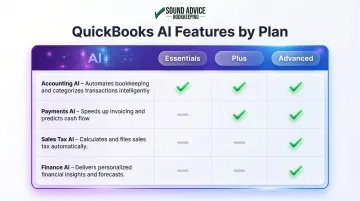
Intuit Assist is a suite of generative AI agents that handle repetitive accounting tasks—from cleaning up books to generating financial insights. What's available depends on your plan:
| Feature | Plans | What It Does |
|---|---|---|
| Accounting AI | Essentials, Plus, Advanced | Cleans books, resolves anomalies, automates categorization |
| Payments AI | Essentials, Plus, Advanced | Proposes personalized invoice reminders |
| Sales Tax AI & Customer AI | Plus, Advanced | Flags tax discrepancies, automates lead follow-ups |
| Finance AI | Advanced only | Generates tailored financial insights and custom KPIs |
Common QuickBooks Setup Mistakes and How to Fix Them
Miscategorizing Transactions
Transactions coded to the wrong account type distort your profit and loss — and the errors are often invisible until tax season. Common culprits include mixing personal expenses with business expenses, or recording owner draws as regular expenses.
To fix this, run a one-time chart of accounts review and historical cleanup:
- Identify accounts with mixed personal and business transactions
- Recode misclassified entries to the correct account types
- Set up bank rules in QuickBooks to prevent the same errors going forward
- Confirm owner draws are recorded as equity withdrawals, not expenses
Sound Advice Bookkeeping's Phase 1 cleanup process addresses exactly this scenario. Miracle Method Franchise put it plainly: Sound Advice "came in and cleaned up the mistakes" from their previous bookkeeper.
Skipping Bank Reconciliation
Many businesses connect their bank feed but never formally reconcile, assuming imported transactions are automatically correct. That assumption leads to duplicate entries, missed transactions, and growing discrepancies that get harder to untangle every month.
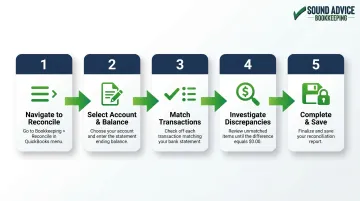
Reconcile every month — no exceptions. The basic QuickBooks reconciliation process:
- Navigate to Bookkeeping > Reconcile
- Select the account and enter your bank statement ending balance and date
- Match transactions between QuickBooks and your bank statement
- Investigate and resolve any discrepancies until the difference is $0.00
- Complete and save the reconciliation
If you're months behind, consider professional help. Sound Advice Bookkeeping's reconciliation service systematically addresses backlogged reconciliation work as part of their Phase 1 cleanup.
Setting Up the Wrong Company Start Date
Entering the wrong start date — or importing historical transactions incorrectly — creates opening balance mismatches that carry forward indefinitely. Your books become unreliable from day one, and the problem compounds with every passing month.
Verify your opening balance by comparing QuickBooks to your bank statement on your start date. If there's a mismatch:
- Identify the correct opening balance from your bank statement
- Adjust the opening balance entry in QuickBooks to match
- Review all historical transactions imported during setup
- Consider whether a professional cleanup makes more sense than manually correcting flawed imports
For complex situations with significant historical data, starting fresh with a verified opening balance often saves more time than attempting to correct flawed imports.
Pro Tips for Getting the Most Out of QuickBooks
Use Tags and Classes Strategically
QuickBooks' tags feature lets small businesses track profitability by project, department, or campaign without complex sub-account structures. This is particularly useful for service businesses or those running multiple revenue streams simultaneously.
Important limitation: Class and location tracking are gated by plan tier. Simple Start and Essentials don't include class/location tracking. Plus allows up to 40 combined classes and locations. Advanced offers unlimited classes and locations.
Tags provide a lighter-weight alternative available across all plans for basic segmentation.
Integrate Third-Party Tools Early
QuickBooks integrates with over 750 business apps, including native, free connectors for major platforms:
- Shopify: Automatically syncs orders, refunds, line items, and taxes
- PayPal: Imports sales, fees, purchases, and transfers, separating fees into expense accounts
- Square: Imports sales, refunds, and payouts, linking transactions to corresponding payouts
- Stripe: Automates import of sales, payouts, and fees, recording Stripe holds and disputes to specific default accounts
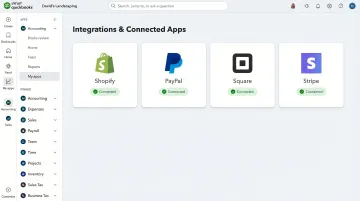
Connecting these at setup—rather than as an afterthought—keeps financial data centralized and avoids reconciliation gaps caused by platforms that don't talk to each other.
Know When to Bring in a Professional
Getting your integrations and chart of accounts right from day one is where professional bookkeeping pays for itself most clearly. QuickBooks is powerful, but it's easy to make costly mistakes without accounting experience. Partnering with a QuickBooks-experienced bookkeeper from the start prevents the kind of cleanup that eats up time during tax season.
Sound Advice Bookkeeping has helped over 1,000 small businesses with QuickBooks setup and optimization since 2007, bringing 100+ years of combined QuickBooks knowledge across Online, Desktop, and Enterprise platforms.
Their three-phase process starts with cleanup/catch-up/setup at $85/hour, moves through a discovery period to understand your transaction patterns, then transitions to flat-fee ongoing support starting at $170/month based on transaction volume.
Professional bookkeeping and QuickBooks work best together. As one client noted, Sound Advice "helped us set up a whole new process that works well for us (we continue to use it to this day)."
Frequently Asked Questions
Which QuickBooks Online plan is best for small businesses?
Simple Start fits solo owners with basic income and expense tracking needs. Essentials suits small teams needing bill pay, time tracking, and 1099 management. Plus is the go-to for businesses with inventory or project tracking requirements.
How much does QuickBooks Online cost for a small business?
Plans range from $20/month (Solopreneur) to $275/month (Advanced), with 50% promotional discounts typically available for the first three months. Most small businesses fall into the $38-115/month range. QuickBooks Payroll is a separate add-on costing $50-134/month base fee plus $6.50-12/employee.
Is QuickBooks worth it for a small business?
Yes, for the majority of small businesses. QuickBooks offers breadth of features, accountant familiarity, and automation tools that reduce bookkeeping overhead. However, ROI depends on actually using it correctly—not just subscribing. Poor setup and skipped reconciliation eliminate most of the value.
What do business owners use QuickBooks for?
Most owners use QuickBooks for invoicing, expense tracking, bank reconciliation, and tax prep. Financial reports (P&L, balance sheet, cash flow) are everyday tools, while advanced users add project profitability tracking and class-based reporting.
Who can help me with my QuickBooks?
QuickBooks offers built-in support, ProAdvisors, and live bookkeeping options. Certified bookkeeping firms like Sound Advice Bookkeeping provide ongoing support, setup cleanup, and optimization tailored to your specific business needs.
How much does a bookkeeper charge to set up QuickBooks?
Setup costs depend on business complexity—some bookkeepers offer flat-fee packages, others bill hourly at $75-150/hour. Sound Advice Bookkeeping charges $85/hour during their Phase 1 setup period. Getting it right upfront costs far less than fixing a misconfigured system later.
Ready to get your QuickBooks set up correctly from the start? Sound Advice Bookkeeping provides QuickBooks setup, cleanup, and ongoing management for small businesses across 30+ states — using a structured 3-phase process built around your transaction volume, not the clock. Contact them at 303.228.8911 or info@soundadvicebookkeeping.com to schedule a consultation.